Classroom preparation ·
How to Print Name Tracing Worksheets for a Whole Class
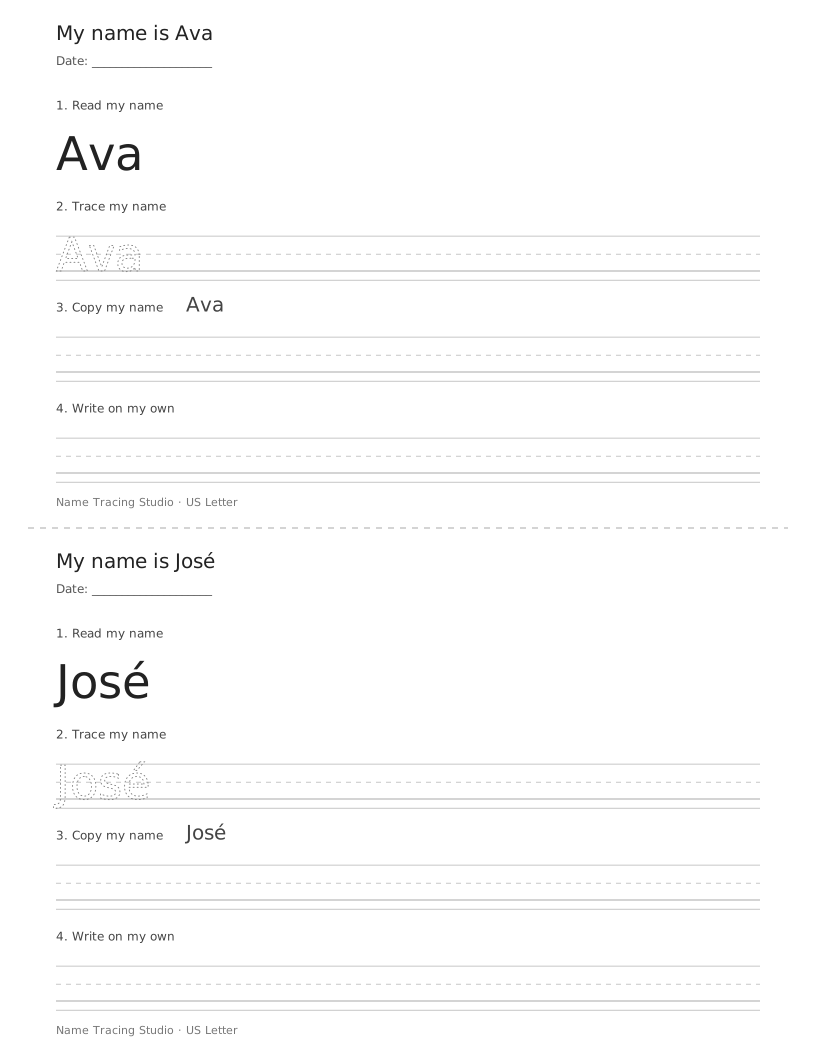
Paste one name per line, check every preview, and print the class in one batch. Two learners per page fits a 40-name list onto 20 sheets, with a cut line between the practice areas.
Prepare a clean class list
Copy the name column from your roster and paste it into the worksheet maker. Use plain names, one per line. Remove the column heading, student numbers and extra columns before printing. This input accepts pasted text, not an uploaded spreadsheet or CSV file.
Ava
José
Anne-Marie
Oliver
This example produces four learner worksheets. Blank lines are ignored. Each name is limited to 40 characters, and a batch holds up to 40 names. Split a larger roster into batches. Latin letters, accents, spaces, apostrophes and hyphens are supported; check each name against the spelling the family uses.
Choose full pages or two learners per page
One learner per page gives each child the full sheet. Two learners per page puts consecutive names into a top and bottom practice area. Cut along the middle line after printing. The smaller areas use smaller lettering, so inspect a sample before preparing a complete set.
| Names | One per page | Two per page |
|---|---|---|
| 4 | 4 sheets | 2 sheets |
| 25 | 25 sheets | 13 sheets |
| 40 | 40 sheets | 20 sheets |
With an odd number of names, the final learner gets the top half of the last sheet. The lower half stays empty. Names remain in the order you entered them; the tool does not sort the class alphabetically.
Check the batch before printing
- Choose a practice template: four stages for read, trace, copy and write, or repeated tracing rows for extra repetitions.
- Choose As typed when your roster already has the correct capitalization. Review names with internal capitals individually rather than applying Capital first to the whole list.
- Match A4 or US Letter to the printer paper. Check the learner and page count above the preview.
- Scroll through every preview, paying particular attention to long names, accents and hyphens.
- Open Print / Save PDF. Use portrait orientation, 100% scale and no browser headers or footers. Check the print preview before sending the batch.
Save a class for another session
Save class stores one roster in this browser. It does not save the worksheet settings, and it does not create an online account. On another visit, choose Load class, then select the template and paper settings for that session. Saving a new roster replaces the previous one after confirmation.
On a shared classroom computer, anyone using the same browser profile can load the saved list. Leave saving unused for a one-off batch, or choose Delete saved when the roster is no longer needed. Deleting the saved copy leaves the names currently on screen in place.
Reprint one learner without rebuilding the class
Replace the visible input with that learner’s name and print one page. Your saved class stays unchanged until you explicitly choose Save class. Load class restores the roster after confirmation. Use this workflow for an absent learner, a spelling correction or an extra practice sheet.